How to make an STL file with ChatGPT (one that actually prints)
Three ways to get an STL out of ChatGPT: its Python tool, OpenSCAD code, or the SpeakCAD plugin. What each one gives you, and which prints the first time.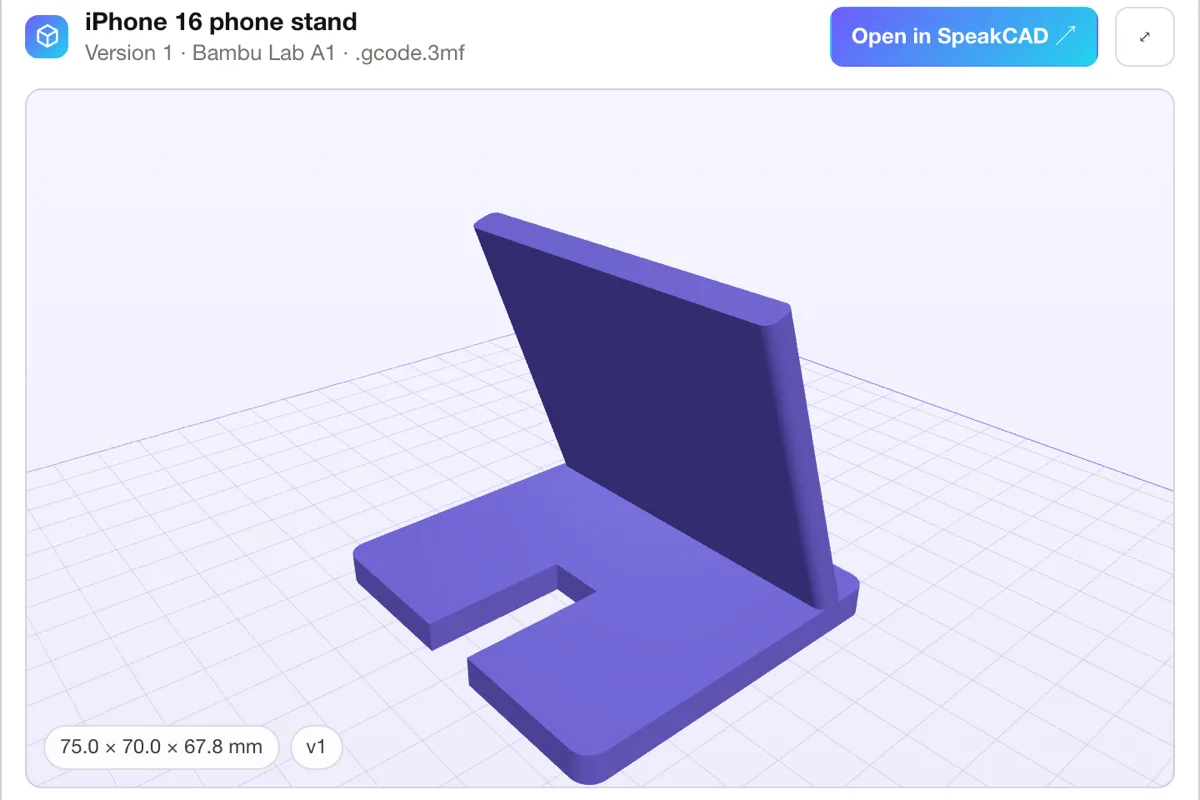
Ask ChatGPT for "an STL of a phone stand" and you will get something. What you get, and whether it prints, depends on which of three routes the conversation takes. Here is what each one hands you, from the crudest to the one that ends on the print bed.
Route 1: ask ChatGPT for the STL itself
ChatGPT can run Python, and Python can write an STL: a list of triangles, often in the ASCII form that starts with solid. For a box, a cylinder or a plate with a hole, that works. For the part you actually described (a stand with a backrest at 70°, a cable slot, rounded edges) it rarely does:
- There is no preview. You find out what the triangles look like in the slicer.
- No print rules. Nothing checks that the walls are thick enough for a 0.4 mm nozzle or that the part sits flat on the bed.
- No edits. "Make it 5 mm wider" means a new script and a new file, with no guarantee the rest stays put.
- Broken meshes. Overlapping or inside-out triangles are common, and the slicer either repairs them silently or refuses the file.
Good for a test cube. Not for a part that has to fit something.
Route 2: ask ChatGPT for OpenSCAD
OpenSCAD is a CAD language: the part is a program, every size is a number, and changing one number changes one feature. ChatGPT writes it fluently, and this is the better route, but the file is still yours to finish:
- Install OpenSCAD on a computer (it is a desktop program).
- Paste the code and compile it. Expect an error now and then: a library such as BOSL2 that is not installed, a missing bracket, a function OpenSCAD does not have.
- Check the render, ask ChatGPT for fixes, paste again.
- Export the STL, open it in your slicer, pick your printer's profile, slice.
It works, from a computer, if you do not mind being the compiler between ChatGPT and the file.
Route 3: add SpeakCAD to ChatGPT
SpeakCAD works inside ChatGPT and Claude as a plugin (an MCP server): ask the assistant for a part with its measurements and SpeakCAD's own CAD AI designs it, shows it in 3D in the chat and hands over a print-ready STL, 3MF or G-code sliced for your printer.
In practice:
- Add SpeakCAD to ChatGPT once: Settings, Plugins, search for SpeakCAD, Connect, sign in with your SpeakCAD account and press Allow. SpeakCAD in ChatGPT shows every click, including the developer-mode route.
- Ask for the part with its measurements: "@SpeakCAD design a stand for an iPhone 16, backrest at 70°, 12 mm cable slot through the base, 75 mm wide". If a number is missing, let ChatGPT ask you first.
- Check it in 3D. One to two minutes later the part shows in the chat with its size and named dimensions (width, depth, back angle, slot…). Type a new value to change it, or ask for a change in words.
- Download. STL or 3MF, or name your printer and get G-code sliced with its OrcaSlicer profile, among 380+ printers.
The difference with routes 1 and 2 is that a CAD tool sits behind the conversation: SpeakCAD's AI writes the parametric program, compiles it, applies the print rules (wall thickness, clearances where parts mate, a flat base) and exports a watertight mesh. ChatGPT keeps the part it does best, asking the right questions.
The three routes side by side
| ChatGPT's own STL | ChatGPT's OpenSCAD | ChatGPT + SpeakCAD | |
|---|---|---|---|
| What you get | Triangles from a Python script | Code to compile | The part in 3D in the chat, then the file |
| Preview | None | In OpenSCAD, after you install it | In the chat |
| Print rules | None | Only if you ask | Applied and checked |
| Changing a size | A new script | Edit a number, recompile | Type the number, or say it |
| G-code for your printer | Slice it yourself | Slice it yourself | Sliced with your printer's profile |
| Works on a phone | Partly (the file) | No (OpenSCAD is desktop) | Yes, in the ChatGPT app or chatgpt.com |
| Cost | Your ChatGPT plan | Your ChatGPT plan | Plus SpeakCAD credits (2 credits a request, 10 credits a download) |
The request that works
Whichever route you take, the part comes out right when the request has three things:
- Measurements in millimetres: outer size, wall thickness, hole diameters and spacing.
- What it fits or holds: "a 20 mm pipe", "a 65 x 30 mm board", "a 3 mm shelf edge". That decides the clearances.
- How it attaches: two screws 40 mm apart, a snap-fit lid, a clip, double-sided tape.
More of these in 25 prompts for ChatGPT and Claude.
No plugin? Paste it
On any ChatGPT plan, the free one included, ask ChatGPT to write the part down with every measurement, then paste that text into SpeakCAD on ChatGPT to STL. The numbers are used exactly; it is the same part, one copy-paste later.
Questions
On its own it can write a basic STL for simple shapes with its Python tool, or write OpenSCAD code you compile yourself. For a real part it needs a CAD tool: with the SpeakCAD plugin, ChatGPT hands the description to SpeakCAD, which designs the part, shows it in 3D in the chat and returns a watertight STL, 3MF or G-code for your printer.
ChatGPT writes the triangles without a CAD kernel, a preview or print rules, so its meshes are often inside out, overlapping or too thin for a nozzle. Slicers repair some of that silently and refuse the rest. Ask for OpenSCAD instead, or let SpeakCAD build the part from ChatGPT's description.
Connecting it is free. What it does is paid from your SpeakCAD account at the site's prices: 2 credits per AI request (the first design or a change), 10 credits per STL or 3MF download (a paid design re-downloads free after small fixes), and 5 credits more for G-code sliced for your printer (included in Pro and Unlimited). Unlimited also includes the requests and downloads. Typing new dimensions in the card and turning the part around in 3D spend nothing. Starter credits ($5 once, 50 credits) is enough for several parts.