Cut one shape from another without a CAD course
A boolean cut is subtracting one shape from another. How to cut a pocket, a slot, a window or a hole out of a 3D model on your phone with the Cut and Hole tools, where the shape goes, and when a sentence to the AI is quicker.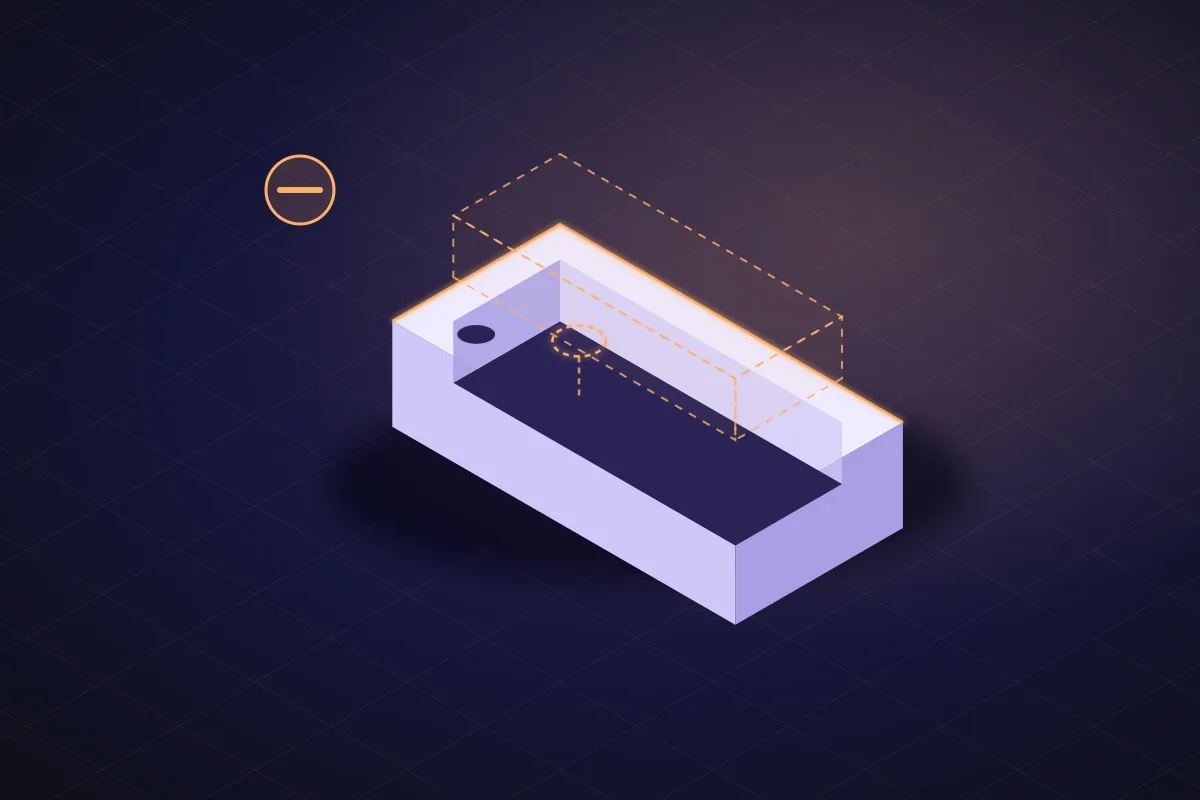
Every CAD program has a word for taking one shape out of another: boolean, subtract, difference, cut. Behind the word is the simplest idea in solid modelling. You have a part. You have a second shape, a cylinder or a box. Where the second shape overlaps the first, material disappears. A hole is a cylinder subtracted. A slot is a long rounded box subtracted. A window is a box subtracted all the way through. The idea is easy; the interface usually is not, because you have to make the second shape, size it, position it in three axes and line it up with a face you are looking at from the wrong angle.
The Cut tool skips all of that by starting from the face.
Cut, from the face you tap
Tap Cut in the rail above the chat. Tap the face of the part where the pocket goes. The card opens with the shape and its sizes:
- Shape: Rectangle, Circle, Slot or Hexagon.
- Width and Length for a rectangle or a slot, Diameter for a circle, Across flats for a hexagon (with M2 to M8 nut-trap presets).
- Corner radius for a rectangle, so the pocket's inside corners are rounded (they print better and they do not crack).
- Depth, with a Through preset that goes out the other side of the wall under your finger, plus a millimetre so no skin is left.
Press Apply cut. The second shape is built for you, perpendicular to the face, centred on your tap, and subtracted. The part recompiles in your browser, usually in under a second, and the new pocket is selected with its own card: those same numbers, ready to change.
That is a boolean subtraction, done with one tap and four numbers. Positioning in three axes became "tap here"; orientation became "the face you tapped".
Where the shape lands
The pocket is centred on the point you tapped, and it goes straight into the face, along the direction you were looking at it from. Two habits make the tap land where you mean it:
- Zoom in first. Two fingers on the model. A face that fills the screen is easy to tap to the millimetre; a face the size of a fingernail is not.
- Look straight at the face. Turn the model with one finger until the face you want is facing you. Tapping a face seen at a steep angle still works, but you will be guessing where the centre is.
If it landed off, press Remove on the pocket's card and tap again. For a pocket that must be at an exact distance from an edge, tap close, then use Measure from the edge to the pocket's side and adjust by removing and retapping, or say the position to the AI with the number.
Hole is a cut too
Hole is the same operation with a round shape and screw presets: M2 to M8 clearance sizes, a tap toggle for the smaller tapping sizes, and Through. Use Hole for screws and pegs; use Cut with a Circle for anything else round, like a recess for a rubber foot or a magnet pocket where you type the magnet's measured diameter plus 0.2 mm.
Recipes
| You want | Tool | Settings |
|---|---|---|
| A cable slot through the side of a box | Cut | Slot, Width 4, Length 12, Through |
| A window for a display | Cut | Rectangle, Width 25, Length 14, Corner radius 1, Through |
| A recess for a 10 mm magnet | Cut | Circle, Diameter 10.2, Depth 2.2 |
| A pocket for a 9 V battery | Cut | Rectangle, Width 27, Length 18, Corner radius 2, Depth 18 |
| A finger notch on a lid | Cut | Slot, Width 12, Length 30, Depth 3 |
| Four screw holes | Hole | M3, Through, tap four times |
| A countersunk screw head | Hole | M3, Through, Screw head: Countersink |
| A trap for an M3 nut | Cut | Hexagon, M3 nut (5.8 across flats, 2.6 deep) |
Measurements above are starting points; the magnet and battery pockets are the object's size plus 0.2 to 0.4 mm of clearance, which the tolerances guide explains.
What Cut will not do, and what to do instead
A pocket with a shape that is not a rectangle, circle, slot or hexagon. A D-shape for a shaft, a star. Say it: "cut a D-shaped hole for a 6 mm shaft with a 4.5 mm flat". One AI request, 2 credits.
A cut that is not perpendicular to a face. The Cut tool always goes straight in from the face you tapped. An angled slot or a cut that follows a curve is a sentence to the AI.
Subtracting one of your parts from another. "Subtract the lid from the box with 0.3 mm clearance" is a sentence; the hand tools work on one shape at a time.
Cutting an uploaded STL. Cut and Hole work on a mesh you uploaded as well. Hand the file over with nothing typed (the Edit an STL box or the online slicer's Change it with AI with the change left empty, or SpeakCAD's card in ChatGPT or Claude with no change) and it opens as a model with no AI turn: cut it by hand and it downloads free. Attach it in the chat with a change instead and that message is one AI request, 3 credits; each cut you then make by hand is still free to make, but the model carries AI work and its download is included in every plan (4 credits without one). The hole-in-an-STL guide has the full path.
Changing or undoing a cut
A cut is a feature, not a scar. Tap it and its card shows its numbers: make the slot 14 mm long instead of 12 and the model recompiles. Press Remove on its card and the material is back. Every Apply is a numbered version with undo, and the previous version shows as a ghost while you decide. The AI, when you call it later, reads your cuts as part of the model and keeps them.
Checking the result
Measure is the fourth tool after a cut. Tap two points to read a distance with its ΔX, ΔY and ΔZ; tap a face to read its size and the wall thickness behind it. Cut a pocket 18 mm deep in a 20 mm tall box and Measure tells you 2.0 mm of floor is left. If it says 0.8, change the Depth on the pocket's card before you print, not after.
What it costs
Shaping a part by hand (a hole and its screw head, a cut, an added tab, raised or engraved text, an extruded face, rounded corners, and copies in a row, a grid or a circle) and downloading what you shaped are free. An AI request spends credits for the work it takes: a quick edit usually 1–2, a small change 1–2, a new part or a design change 3–8, never more than 15 credits; on a plan the first three small changes of each part are free; downloads are included in every plan (4 credits without one), and G-code sliced for your printer costs the same as the STL. A part started from a shape (box, plate, cylinder, tray) or from your own STL or 3MF file and shaped only with the tools downloads free with a free account. The moment the AI touches the model (a D-shaped hole, a lid that fits, an angled slot), its download is included in every plan (4 credits without one, with small fixes after a test print re-downloading free), and G-code costs the same as the STL. On the live demo you can cut into the demo part without an account.
Prompts to start from
Open one in the builder, change the numbers to yours, and the model renders in your browser, usually within a minute or two. Keep adjusting in the chat before you print.A 60 x 40 x 25 mm box with 2 mm walls, a 12 x 4 mm cable slot through one short side 5 mm above the floor, and a 5.5 mm hex pocket 3 mm deep in the centre of the floor for an M3 nut.
A lid for a 60 x 40 mm box, 2 mm thick, with a 0.3 mm clearance lip and a 12 x 30 mm finger notch 3 mm deep.
Questions
Subtracting one shape from another: where a cylinder or a box overlaps your part, the material is removed. A hole is a cylinder subtracted; a slot is a long rounded box subtracted; a window is a box subtracted all the way through.
Yes. In SpeakCAD, in the browser on a phone or a computer, tap Cut, tap the face, choose Rectangle, Circle, Slot or Hexagon, type the sizes and press Apply cut. The hand tools are free to use; the live demo needs no account.
Yes. Hand the file over with nothing typed (the Edit an STL box or the online slicer's Change it with AI with the change left empty, or SpeakCAD's card in ChatGPT or Claude with no change) and it opens as a model at once, with no AI turn; Cut and Hole then work on the mesh, free to apply, and a part shaped by hand on your file downloads free. Attach it in the chat with a change written instead and that message is one AI request, 3 credits; the download of a model with AI work spends 4 credits, and small fixes re-download free.
Describe it to the AI in the chat under the tools: a hex pocket, a D-shaped hole, an angled slot. One request is 2 credits, and the AI keeps the cuts you already made by hand.